Vincent – A Python Library to build d3 quality plot

Vega is a visualization grammar developed by the folks from Trifacta(some history). You can have a brief idea of the idea of Vega in just one minute going to this online editor, which will map the json syntax to its corresponding virtualization. What is more, the community has also developed Python package Vincent to make Python plot beautifulsoup d3 quality graphs with Vega running behind the scene.

I installed Anaconda Python on my Ubuntu box since pandas is a dependency for Vincent, which Anaconda ships with pandas. There are hundreds of warnings while I was doing `sudo pip install vincent` and it also took me a 10+ minutes pausing now and then, in the end, it will finish, FYI.

My first impression of Vincent is it is actually not as awesome and friendly as rCharts in R. And after tinkering about for a while, I did not figure out how to do that in iPython notebook and instead generated the vega template and the vega.json to have a plot looks like below. It looks pretty slick but there is no hovering over and those interactive features that I assume should be delivered. And I still think it will prefer rCharts over Vincent unless one day that I have to develop it in the Python environment. iPython Notebook + Vincent + Flask? maybe …
But at this moment, I like Shiny + rCharts + ggplot2!

vincent_lineplot


R – Shinyapps.io A free Platform to host your ShinyApp

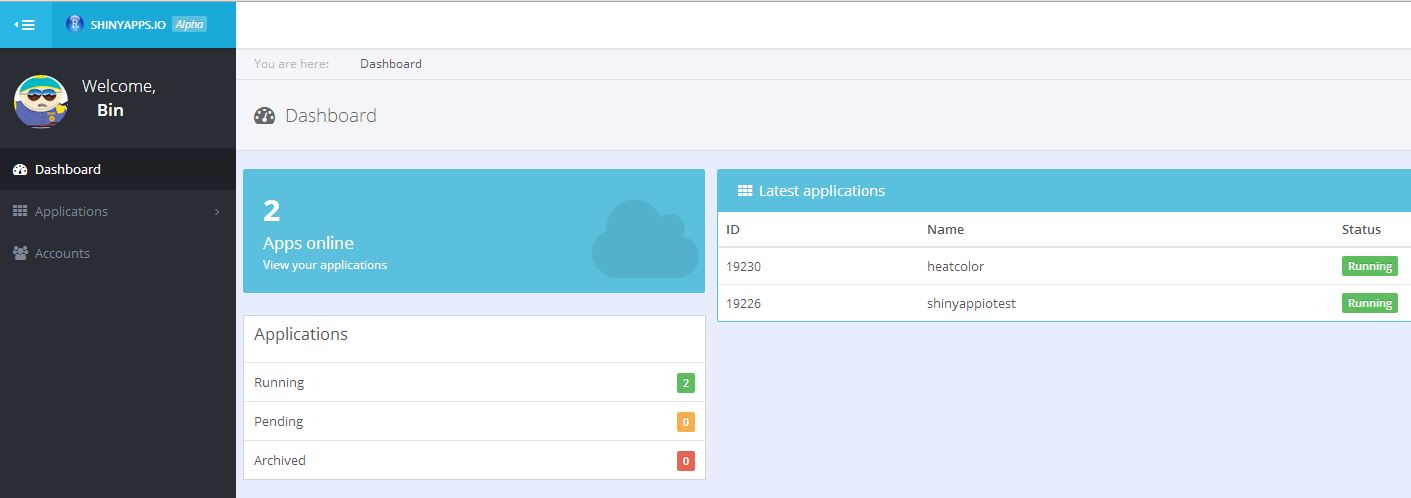
shinyapps.io is another product (alpha version now) from RStudio, where it will host shiny apps for you free. You just need to install the package shinyapps, login, and you can just run command `deployApp()`. Then you will have your app running 24 * 7.

shinyappio_dashboard

shinyappsio dashbaord

shinyappio_heatcolor

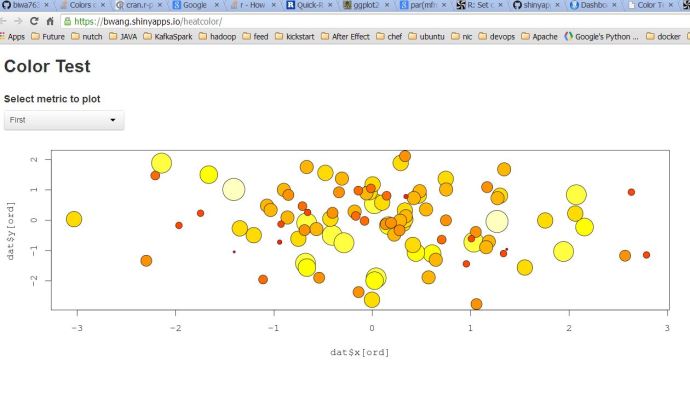
a shinyapps.io hosted shinyapp Code borrowed from Stackoverflow

The Shiny application code was borrowed from this stackoverflow question.

Scrapy – Dockerized Scrapy Development Environment

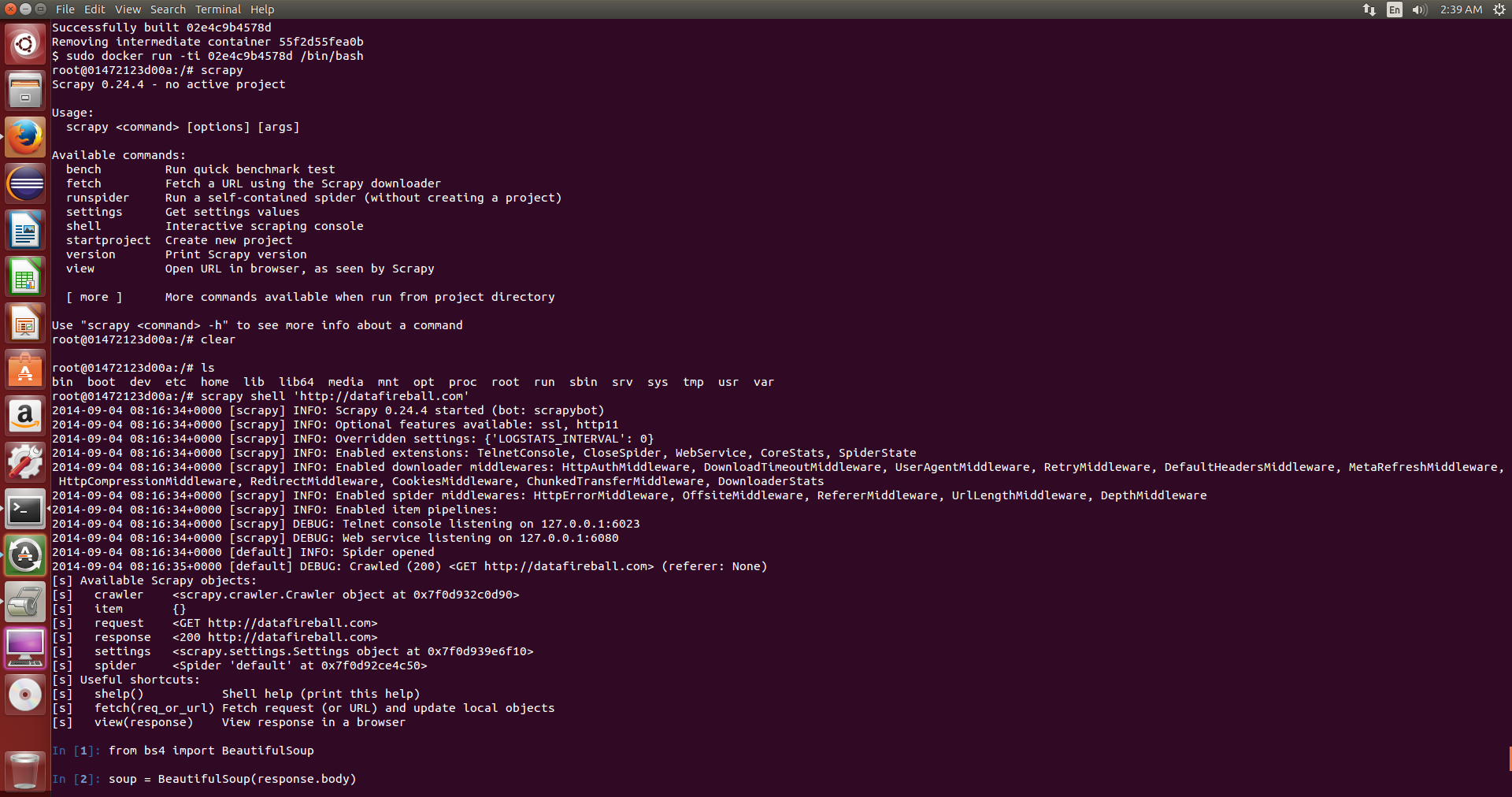
I wrote a Dockerfile which will follow the Scrapy installation instruction for Ubuntu. I had a hard time using pip to make it work, some errors like missing openssl/xxx.h.. Anyway, now you have a recipe to build the Image which contains BeautifulSoup4, Scrapy and iPython.

Checkout my github repository for more information.

You can modify the Dockerfile to only include the functionalities you need.

# start the container daemon in background
sudo docker run -v <hostdir>:<containerdir> -d <image>
# attach to the running container
sudo docker attach –sig-proxy=true <container>
# detach and leaving the container running without exiting.
CTRL-P + CTRL-Q

docker_scrapy_dockerfiledocker_scrapy_ipython

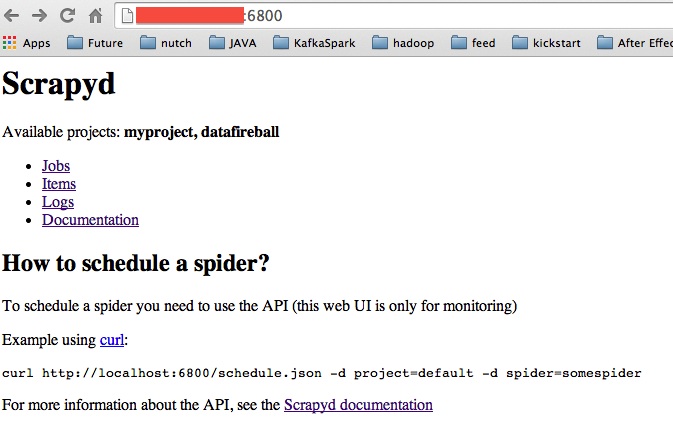
Scrapyd – You can manage your spiders in GUI

“Scrapyd is an application for deploying and running Scrapy spiders. It enables you to deploy (upload) your projects and control their spiders using a JSON API.”

You first need to package your project into egg by using ‘scrapy deploy’ inside the project folder.

Then you can upload the egg to the scrapy server by using ‘curl http://localhost:6800/schedule.json -d project=datafireball -d spider=datafireball’

Docs, Github:

scrapyd_homepage

scrapyd_jobsscrapyd_itemsscrapyd_items_detail

Docker – Remove Existing Docker Images

I want to remove all the existing docker images from my virtualbox, and I also ran into the errors like this for a few images.

docker_rmi_fail

However, I ran command `sudo docker ps`, I cannot see any running containers and it confused me a lot until I came across this Docker issue3258 on github. In the end, I realized that there is a difference between running and non-running containers which `docker ps` will only list the running ones. You need to remove both types of containers before remove all the images.

Here is the solution in the end:

sudo docker ps -a | grep Exit | awk '{print $1}' | sudo xargs docker rm
sudo docker rmi $(sudo docker images -q)

More information about what the commands do:

`sudo docker ps -a` will list all the information about docker containers including the running one, exited ones..etc.  

docker_rmi_ps_a

Then it pipe the data to extract the image id of the ones that contain Exit then run `docker rm` command, which is used to remove non-running containers.

After that, you can easily remove all the images because no containers will be running. Here is also a helpful post from stackoverflow.

Docker – Build A Docker Container to run Selenium Grid

I found a project on github contributed by Lewis Zhang and Mohammed Omer(momer), momer has not only written a Nutch plugin to make http request using Selenium,Firefox, but also finished another plugin on top of Selenium Grid which will not only improve the performance if running in parallel, but also leverage the grid to handle the hanging process if any. He also offered two docker images to help get started. Since I have not really used docker and think this would be great chance to learn how to use. So this post is about my experience building his project using docker.

You can clone the github repositories locally and run docker build. However, there is an easier way which you can just run docker build command directly against the github project. In that case, it will treat the files from the URL as a whole and actually pull the content first locally, then send it to the docker daemon using as the `context` to build the container.docker_build_git_url

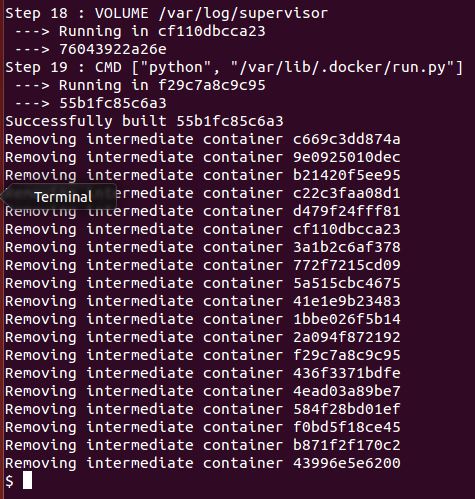
Two things that worth mentioning, first, you can pass a tar ball to the build command from stdin and docker will decompress and use it as the context. second, there are many staging or intermediate containers along the way to build the final container that you expected. Those will be deleted as default but you can keep them if you set the –rm=false. docker_build_remove_intermediate_containers When I build the hub container, I realized the repository name is missing and the same thing happens again when I redo it. I ended up using the 12 digits image id to start the container, and at least it works.

docker_run_hub

Now the challenging part is how to start the node, momer mentioned that you gonna use a tool called MaestroNG to make it work.

TO BE CONTINUED


Selenium – Side Effect. Bot or Human

Whenever you want to run Selenium against a site, please understand it will trigger all the javascript and act like a fully functional browser, it will trigger all kinds of services that might impact target website.

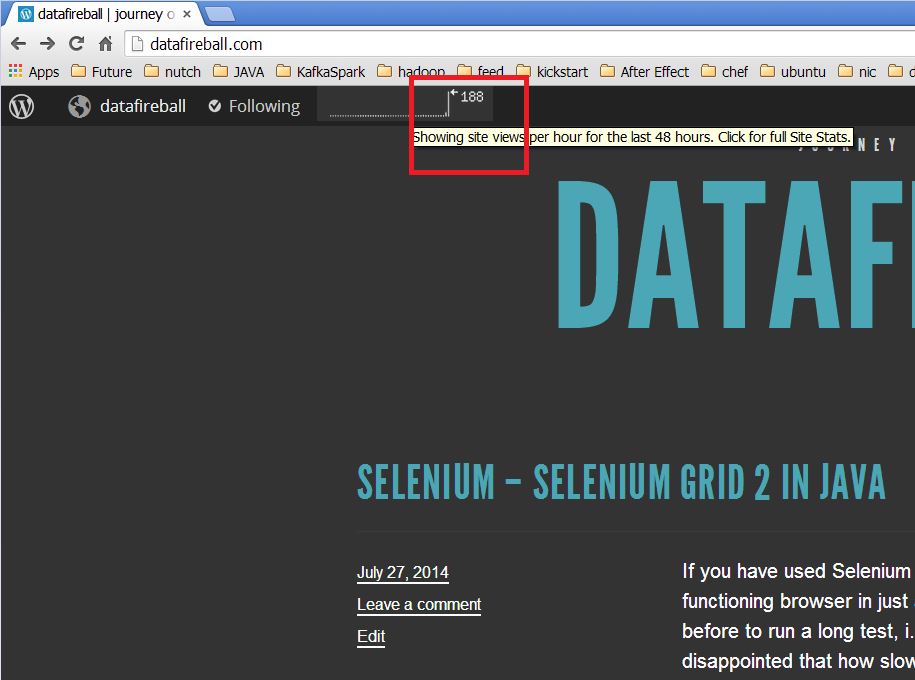
For example, while I was playing around with Selenium this morning to hit against my own website. It actually totally mess up the monitoring tool comes with wordpress and now, my poor traffic has been heavily skewed by the traffic that caused by Selenium. In another way, if you did this to some business, there google analytics might be totally screwed and it is not beneficial to any one.

selenium_boost_traffic

Selenium – Selenium Grid 2 in Java

If you have used Selenium before, you might be amazed at how easy it is to manipulate a fully functioning browser in just a few lines of code. On the other hand, if you have used Selenium before to run a long test, i.e., to scrape a long list of URLs that require javascript. You will be also disappointed that how slow it could be, comparing with non-javascript calls. Here, Selenium Grid is will scale Selenium Test easily and run Selenium Test in parallel. 

In this post, I basically followed the Selenium Grid 2 tutorial, and got the Selenium grid working. One thing that worth mentioning is you had better download a standalone Selenium server that will be compatible with you browser version. Low hanging fruit might just be going after the latest Selenium build. 

selenium_grid_setup

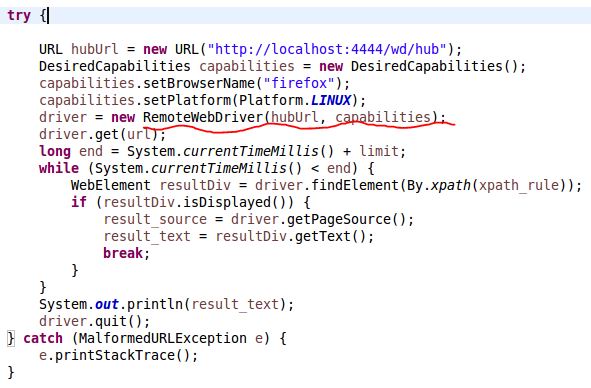
selenium_grid_javaapi

As you can see, instead of do `new Firefoxdriver`, you can just describe your browser capability, and the hub will assign the right resource to you. 

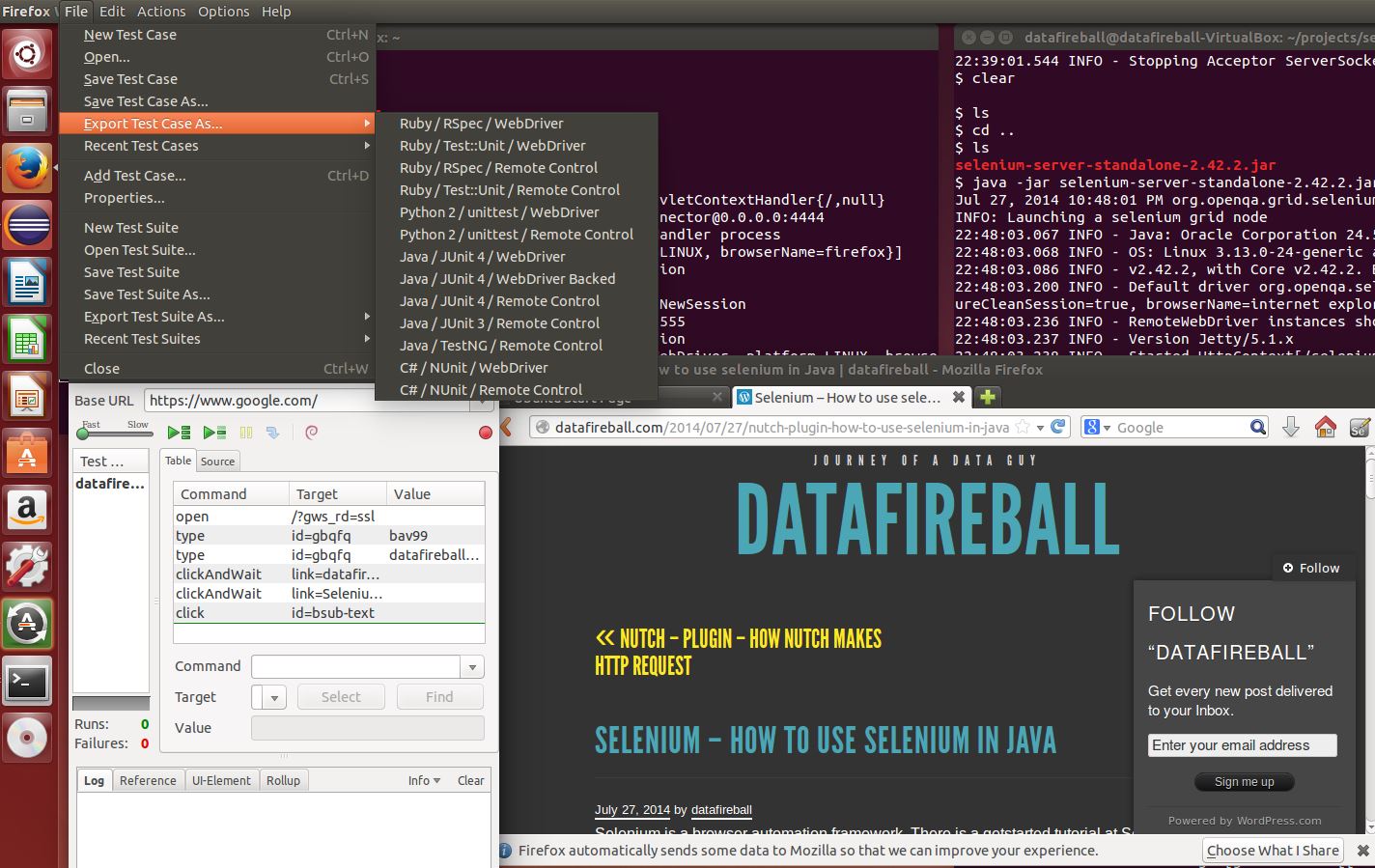
Also, you don’t have to write Java code and there is a great tool called Selenium IDE that will track your activity inside a browser and generate test script based on that recording, and it can the exported to all different types of languages and format. Junit, Python Test ..etc.

selenium_ide

Here is a video from youtube by Ghafran helped me a lot! 

Selenium – How to use selenium in Java

Selenium is a browser automation framework. There is a getstarted tutorial at Selenium wiki that looks like a good place to get started. Since firefoxdriver is a more complete solution comparing with HtmlUnitDriver due to the fact that javascript will get executed in a browser, I will just skip the HtmlUnitDriver part.

Of course, we need to find the maven dependency for Selenium where you can find it here. I am planning to use 2.39.0 in this case because it seems like it has the highest adoption rate.

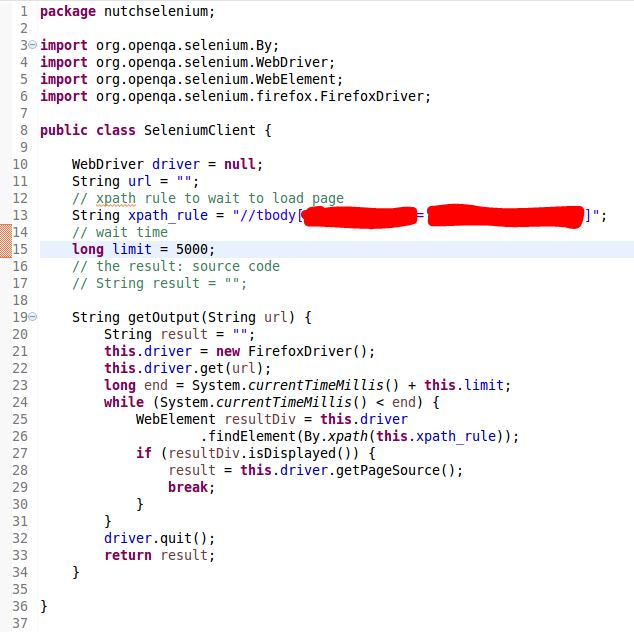
Here I created a Java class, which has a method that will take in an URL and return the HTML source code of that page. Of course, since Javascript execution will take time and you have to give the browser a signal of when should be the success of the fetching, in my case, is when the browser is able to find an element that matches a customized xpath. If not, it will try to wait for a certain amount of time.


java_selenium_client

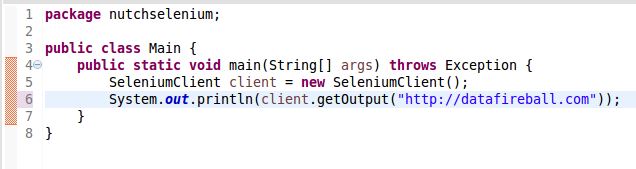
And here is how you can grab a webpage in one line using Selenium.java_selenium_client_main


Of course, there are tons of things that need to add into this protocol like error handling etc.

But at least, we have a straw man right now!