Contents cited from Coursera class Data Analysis from Johns Hopkins University by Jeff Leek.  The dataset that Jeff was working with comes from the package kernlab (kernal based machine learning lab).

library(kernlab); data(spam); set.seed(3435);

trainIndicator = rbinom(4601, size=1, prob=0.5)

table(trainIndicator)

0 1
2314 2287

# table command here is called: Cross Tabulation and Table Creation which comes very handy

1. Look at the training set with the commands: names(data), head(data), table(data$col)

2. Plot

plot(log10(trainSpam$capitalAve+1) ~ trainSpam$type)spamplot

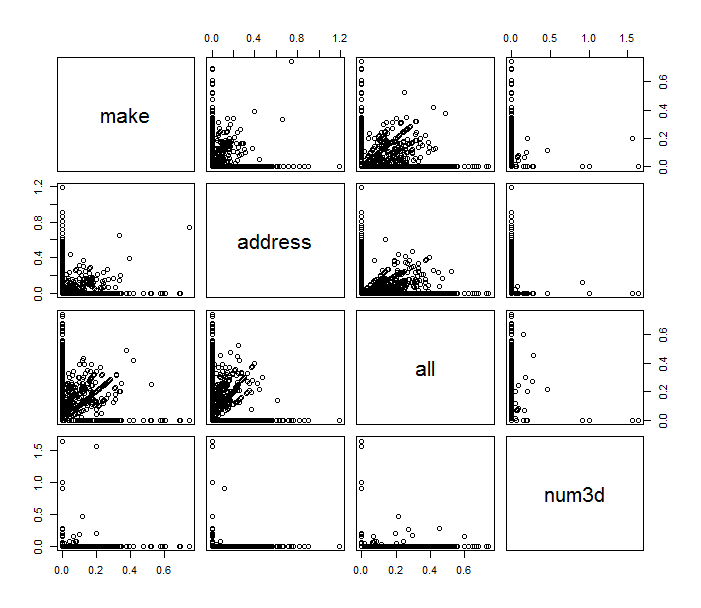
# you can also use pairs command here

plot(log10(trainSpam[,1:4]+1)) pairplot
plot(hclust(dist(t(log10(trainSpam[, 1:57]+1)))))  clusterDendrogram


# the code below demonstrate a basic process for statistical prediction/modeling

trainSpam$numType <- as.numeric(trainSpam$type) – 1
costFunction <- function(x,y) {sum(x!=(y>0.5))}
cvError = rep(NA, 55)
library(boot)

for(i in 1:55){
lmFormula = as.formula(paste(“numType~”, names(trainSpam)[i], sep=””))
glmFit = glm(lmFormula, family=”binomial”, data=trainSpam)
cvError[i] <- cv.glm(trainSpam, glmFit, costFunction, 2)$delta[2]
}

# measure of uncertainty

predictionModel <- glm(numType ~ charDollar, family =”binomial”, data=trainSpam)
predictionTest <- predict(predictionModel, testSpam)
predictedSpam <- rep(“nonspam”, dim(testSpam)[1])
predictedSpam[predictionModel$fitted > 0.5] = “spam”
table(predictedSpam, testSpam$type)

– predictedSpam nonspam spam
– nonspam 1348 398
– spam 81 481

(We can see the spam classifier we built only using the dollar sign did a pretty good job for non spam emails but for spam emails, the output turned out to be half and half)

And the error rate is about 22%


STATS – the Turning Point Test

Say, you have a time series object that you want to work with. You might want to check if the time series happens to be generated by white noise only, this might happen not only during the interview but also in real life sometime.

If you have three contiguous time points, assuming they are of different values. Then there are 6 permutations to order them.  And four of them form a turning point (PEAK/PIT).

The expectation of number of turning points for a time series generated by white noise is then 2/3 * n, and actually they falls into a normal distribution where the variance is 8/45*n.

So your 5% confidence test should check if the number of turning points is within the range of: 2/3*n +- 1.96*sqrt(8/45*n):

require(pastecs)
data <- rnorm(10000, 0, 1)
plot(data)
limit <- function(n){
print(2/3 * n)
print(2/3 * n – 1.96 * sqrt(8/45 * n))
print(2/3 * n + 1.96 * sqrt(8/45 * n))
}
turnpoints(data)
limit(10000)

OUTPUT

> turnpoints(data)

Turning points for: data nbr observations : 10000 nbr ex-aequos : 0 nbr

turning points: 6657 (first point is a peak) E(p) = 6665.333 Var(p) = 1777.456 (theoretical)

> limit(10000) [1] 6666.667 [1] 6584.026 [1] 6749.308

You can clearly see that the fake time series does actually have 6657 turning points and it has been tested falls into our “BLACK LIST INTERVAL”!

R Base Functions that You Never Use

I happen to find a list of all the R base functions, then I cannot help going through some of them. To satisfy my pride, I decided to look in the back order.

1. yinch – xinch

(Move the point in the unit of inch while plotting)

2. edit/vi/emacs/xemacs/xedit

testData <- edit(data)

3. getwd()/write()/unlink()

get the current working directory, write matrix to the working directory, delete the file

4. file()/file_test()/file.access()/file.remove()/file.copy()/file.exist()/file.info()/file.append()/file.symlink()/file.link()/file.path()/file.show()

… all the low level interface to the computer’s file system

R in command line – Read Pythonic Data into R

To read the data that cleaned up by Python. There are a few options. You can pump Python result into some kind of popular datatypes (JSON), or You can do some ETL work on either side to make the output the Python could be easily read by R. However, there is already an R package called RPython that seamlessly fill in this gap.
Take a look at document of this package, you can find there are only 4 functions in the content page but that makes my life so much easier.

1.

library(‘rPython’)
str_py_list <- "[1,'a', 'B']"
str(python.get(str_py_list))
List of 3
$ : num 1
$ : chr "a"
$ : chr "B"
str_py_tuple <- "(1,'a', 'B')"
str(python.get(str_py_tuple))
List of 3
$ : num 1
$ : chr "a"
$ : chr "B"
str_py_dict <- "{1:2, 'a':'A', 'B': 1+1}"
str(python.get(str_py_dict))
List of 3
$ a: chr "A"
$ 1: num 2
$ B: num 2

As you can see, the python.get will read in the string and parse python objects into the List in R. and then you can use data.frame to change it into dataframe type.

2. python.assign(PyObject,RObject) will read the R object and translate into an Python object. Combining with python.exec("python command"), you can read the R data into Python.

> data(iris)
> df python.assign(‘py_iris’, df)
> python.exec(“print len(py_iris)”)
5
> python.exec(“print py_iris.keys()”)
[u’Petal.Length’, u’Sepal.Length’, u’Petal.Width’, u’Sepal.Width’, u’Species’]

3. python.load() will run a script of python code

$cat datafireball.py
import urllib2, sys
sys.path.append(‘/Library/Python/2.7/site-packages/beautifulsoup4-4.2.1-py2.7.egg’)
from bs4 import BeautifulSoup
stream = urllib2.urlopen(‘https://datafireball.com/&#8217;)
soup = BeautifulSoup(stream)
print soup.find(‘div’, {‘class’:’site-description’}).text.encode(‘utf-8’)

Above is a very basic Python script which uses urllib2 library make http request to datafireball.com and then uses BeautifulSoup package to parse the html returned. In the end, it will print the description title of datafireball.com to the screen.
Note, if you know how to catch the title into R, please leave a comment, but this is what happens in R.

python.load(‘/tmp/datafireball.py’)
a journey of a data guy

R in command line – Install R on Redhat6

To distribute R code, first of all, you need to install R on every single node across your cluster. You can find all kinds of information of how to install R on debian distribution etc. Here I will tell you how to properly install R on Redhat 6.

Redhat is using RPM(Redhat Package Manager) and for a Redhat 6.4 (Amazon Web Service), when you are trying to do sudo yum install R, the computer is not smart enough to figure out what you are trying to install.

Image

Actually, they do have the R package for Redhat 6 but it is in the EPEL(Extra Package for Enterprise Linux). You can find all the packages available for Redhat 6 here(clearly, you can see R-core, R-dev.. in that list).

What you need to do is:

su -c 'rpm -Uvh http://dl.fedoraproject.org/pub/epel/6/x86_64/epel-release-6-8.noarch.rpm'

Then you can install R in one go:

su -c 'yum install -y R R-core R-core-devel R-devel' 

Note, the -y flag answers yes to all the questions asking you ‘Is that OK with you [yes/no]’ 🙂

R in command line – stdin/stdout

In most cases, people use R inside some kind of IDE or interactive mode, like the R command line or Rstudio. From there, you can import all kinds of dataset using read.csv…etc. However, sometimes, I found it extremely helpful to write your R code in Rscript and read the data from the standard input and write the result back to the standard output. In this way, you can seamlessly pipe your R script with Bash, Python all together in one line.

Also, Hadoop Streaming makes it super easy to combine the power of all kinds of different languages together and fully utilize the power of cluster computing. This series of posts, I will introduce how to use stdin/stdout in R, how to parse the string into arguments, how to organize the out and how to apply all of this into Hadoop Streaming.

Here I will post a few tips for R users to get started working with stdin and stdout:
1.

#!/usr/bin/Rscript

Very First of all, your code need to start this line of code, this “shebang” will tell the machine which interpreter it will use to run the code, not /user/bin/R not anything else, the Rscript!
2.

input<-file('stdin', 'r')

As mentioned in the help page for function file:
Use “stdin” to refer to the C-level ‘standard input’ of the process (which need not be connected to anything in a console or embedded version of R, and is not in RGui on Windows).
Then we’ve successfully created the connection.
3.

row <- readLines(input, n=1)

The ‘r’ flag is actually very important here, otherwise, you can only read the first line..
And as default, the connection is closed when we first created the input connection. From the help page of readLines: If the connection is open it is read from its current position. If it is not open, it is opened in “rt” mode for the duration of the call and then closed again. Usually, data stored in the flat file comes with a format that each line is a record. So n=1 tells R to read 1 row at a time.
4.

while(length(row)>0) {
    # do something with your row (record)
}

To make sure every row got processed. You just need to check the length of the line that you read and put that into a while loop as a check flag.
5.

write(result, "")

write(x, file=”data”…), the file could be a connection, but we want our result be written to the standard output, in this case, we can just use an empty string/stdout() to make it happen.