EBITDA
http://www.investopedia.com/terms/e/ebitda.asp
SG&A
http://www.investopedia.com/terms/s/sga.asp
Here is a paper that describes rgl package in detail. And here I will just attach some code to show how to install the package and quickly plot a few proof of concept plots in 3D and it is really a fun experience to draw the plot yourself and interact with it, rotate, flip, zoom in zoom out…etc.
> library(“rgl”)
> ?rgl.spheres
> open3d()
> spheres3d(rnorm(10), rnorm(10), rnorm(10), radius=runif(10), color=rainbow(10))
> rgl.open()
> rgl.points(rnorm(1000), rnorm(1000), rnorm(1000), color=heat.colors(1000))
If you are using Mac, you probably need to have X11 (XQuartz) pre-installed and here are the outputs from the commands above, it won’t be printed to the Plots/Viewer panel if you are using RStudio, and it will be a new window for each open3d() command.

The package RSelenium is actually developed a while back. 2014-05-24. And it provides an API as easy as the API in Python. So one can use Selenium to test his/her Shiny app or do webscraping using Selenium in R!
Start from this stackoverflow question.
When you pass … (three dots) to a function, you it will be a named list that you can retrieve the argument value by using list(…)$argument name, also ..n (two dots followed by a integer) will retrieve the argument by order. ..2 will retrieve the second one and ..1 will retrieve the first one.
This post originates from this Stackoverflow question. It is the first time I ever came across the term “Dynamic Time Warping” and it turned out it is a really straight forward concept in the end after reading this introduction from Macquarie University.
In a short sentence, it will to match the pattern between two series by finding the best consistent path.
idx<-seq(0,6.28,len=100);
query<-sin(idx)+runif(100)/10;
template<-cos(idx)
library(dtw);
plot(dtw(query,template,keep=TRUE),type=”threeway”)
plot(dtw(query,template,keep=TRUE,step=rabinerJuangStepPattern(6,”c”)),type=”twoway”,offset=-2);

For example, lets start with the Query data, it starts at value 0, and Reference data start with 1. Then we say they are not good match. We need to keep search down the Query sequence until we hit the value closest to 1, which is basically at index 30 at the Query index. That explains why the alignment start flat horizontally. Actually, it turns out from then on, the query data and the reference data lines up pretty well. And that explains why the alignment plot is almost perfect diagonal (it should be perfect diagonal if you compare one series to itself). Then after the query data reaches value 0 at index 100. The path need to end at top right corner. And that is why there is also a vertical line in the end.

After all these interesting math games and plots, we might need to spend some time figuring out how should that be applied to our data science life, right? Believe or not, there is an article from the Journal of Statistical Software by Toni Giorgio, who is the author is this package dtw.
So you basically need to understand what index1 and index2 mean and then building a mapping function using those two vectors to map the input/query data to the reference/template. Then you can scale the input data in whatever way you want.
Here is a visualized way of the optimal path:

library(d3Network)
Source <- c(“A”, “A”, “A”, “A”, “B”, “B”, “C”, “C”, “D”)
Target <- c(“B”, “C”, “D”, “J”, “E”, “F”, “G”, “H”, “I”)
NetworkData <- data.frame(Source, Target)
# Create graph
d <- d3SimpleNetwork(NetworkData, height = 300, width = 700, fontsize = 15)
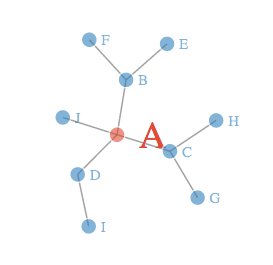
Will generate a html file that contains all the data. You can open up the file in your browser and you will see an interactive plot with a few nodes.
It is also a lot of fun to drag and yank the node here and there.
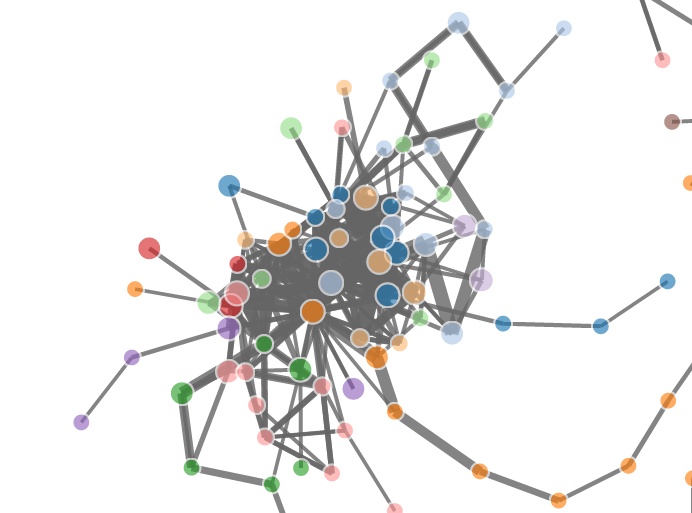
It is also really amazing that how much data this package can handle, here is a post from R-bloggers that show you a few graphs with more data points.
Story starts from this Stackoverflow question.
Mrflick gave an answer to help the OP drew the plot using ggplot2, and I was curious that the way how he came up with data frame looks so unique. Honestly, I have never seen anyone so far using the structure function with nested list object to create a data frame. Then I suggested to him using `read.table` to import the data directly into R, like this.
library(plyr)
library(reshape2)
datatext=”
8192 2 1 1 1
65536 10 5 4 4
1048576 81 60 63 52
8388608 675 555 572 464
16777216 1334 1124 1171 953
33554432 2780 2348 2438 2014
67108864 5853 5229 4957 4238
134217728 12437 10303 10521 8921
”
mydata <- read.table(text=datatext, col.names=c(“size”, “v1”, “v2”, “v3”, “v4”))
Clearly, I guess you should never tell a guy with 28K stackoverflow credits what is the right way to read in data. 🙂 I guess when he read in the data, it is probably in a much smarted way than I imagine, but clearly, he was using the `dput` and `dget` function because he is SHARING CODE.
So basically, you can use dput to “Writes an ASCII text representation of an R object to a file or connection, or uses one to recreate the object.”, say you have a small data frame `mtcars` that you want to send to your coworker through Skype.
You can just type `dput(mtcars)` and it will print a long string to the standard output and you can just cp to Skype, then they can read in simply by copy and paste the string to reconstruct the object in one line by running `data <- <skypestring>`. This not only works for data but also for functions.
`dget` is only used to read from a file which contains the output from dput.
 datafireball