R – DPUT and DGET

Story starts from this Stackoverflow question.

Mrflick gave an answer to help the OP drew the plot using ggplot2, and I was curious that the way how he came up with data frame looks so unique. Honestly, I have never seen anyone so far using the structure function with nested list object to create a data frame. Then I suggested to him using `read.table` to import the data directly into R, like this.

library(plyr)
library(reshape2)

datatext=”
8192 2 1 1 1
65536 10 5 4 4
1048576 81 60 63 52
8388608 675 555 572 464
16777216 1334 1124 1171 953
33554432 2780 2348 2438 2014
67108864 5853 5229 4957 4238
134217728 12437 10303 10521 8921

mydata <- read.table(text=datatext, col.names=c(“size”, “v1”, “v2”, “v3”, “v4”))

Clearly, I guess you should never tell a guy with 28K stackoverflow credits what is the right way to read in data. 🙂 I guess when he read in the data, it is probably in a much smarted way than I imagine, but clearly, he was using the `dput` and `dget` function because he is SHARING CODE.

So basically, you can use dput to “Writes an ASCII text representation of an R object to a file or connection, or uses one to recreate the object.”, say you have a small data frame `mtcars` that you want to send to your coworker through Skype.

You can just type `dput(mtcars)` and it will print a long string to the standard output and you can just cp to Skype, then they can read in simply by copy and paste the string to reconstruct the object in one line by running `data <- <skypestring>`.  This not only works for data but also for functions.

`dget` is only used to read from a file which contains the output from dput.

R – DoseFinding

Today, I got to know this library `DoseFinding` and it actually is so powerful that I think I probably will use this library for modeling in the future.

library(DoseFinding)
library(gridExtra)
data(biom)
fitemax <- fitMod(dose, resp, data=biom, model=”emax”)
p1 <- plot(fitemax)
fitlinearlog <- fitMod(dose, resp, data=biom, model=”linlog”)
p2 <- plot(fitlinearlog)
fitlinear <- fitMod(dose, resp, data=biom, model=”linear”)
p3 <- plot(fitlinear)
fitquadratic <- fitMod(dose, resp, data=biom, model=”quadratic”)
p4 <- plot(fitquadratic)
fitexponential <- fitMod(dose, resp, data=biom, model=”exponential”)
p5 <- plot(fitexponential)
fitlogistic <- fitMod(dose, resp, data=biom, model=”logistic”)
p6 <- plot(fitlogistic)
grid.arrange(p1, p2, p3, p4, p5, p6)

stackoverflow_25677200

Let’s take a closer look at the fitMod function, there are so many commonly used models built in this model.

There are so many arguments that you can pass to the function fitMod, and there is a parameter `bnds`, which will define the bounds for non-linear parameters.


Node.js – Web Scraping Using Cheerio

This is a fantastic video from Smitha Milli, which will help you get started with web scraping using Node.js.

Also, there are a few interesting projects that might need to check out in the future.

1. Nokogiri in Ruby

2. Request and Cheerio in Node.js

3. pjscrape Javascript (using PhantomJS and jQuery)

I also modified her code a little bit and pushed my own code to my github account. It will save the raw html along with other interesting attributes to a plain file in json format. And people can extract the part they want in the future.

Scrapy – Dockerized Scrapy Development Environment

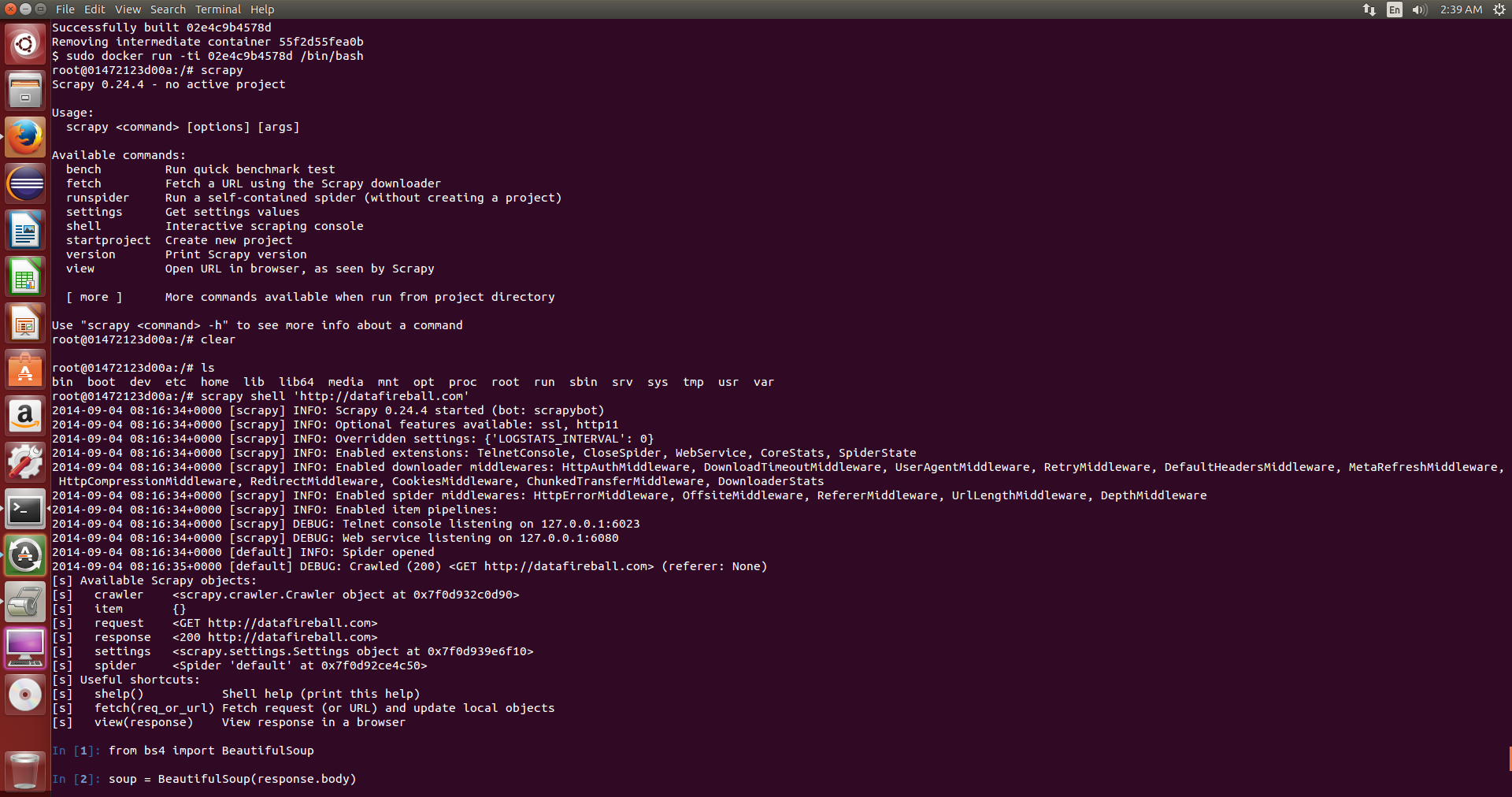
I wrote a Dockerfile which will follow the Scrapy installation instruction for Ubuntu. I had a hard time using pip to make it work, some errors like missing openssl/xxx.h.. Anyway, now you have a recipe to build the Image which contains BeautifulSoup4, Scrapy and iPython.

Checkout my github repository for more information.

You can modify the Dockerfile to only include the functionalities you need.

# start the container daemon in background
sudo docker run -v <hostdir>:<containerdir> -d <image>
# attach to the running container
sudo docker attach –sig-proxy=true <container>
# detach and leaving the container running without exiting.
CTRL-P + CTRL-Q

docker_scrapy_dockerfiledocker_scrapy_ipython

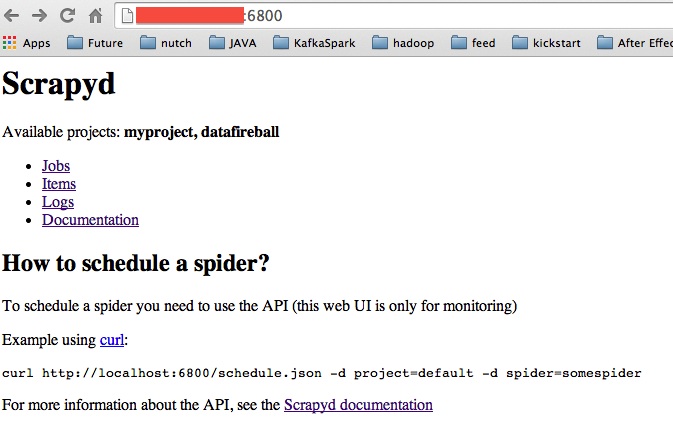
Scrapyd – You can manage your spiders in GUI

“Scrapyd is an application for deploying and running Scrapy spiders. It enables you to deploy (upload) your projects and control their spiders using a JSON API.”

You first need to package your project into egg by using ‘scrapy deploy’ inside the project folder.

Then you can upload the egg to the scrapy server by using ‘curl http://localhost:6800/schedule.json -d project=datafireball -d spider=datafireball’

Docs, Github:

scrapyd_homepage

scrapyd_jobsscrapyd_itemsscrapyd_items_detail

Docker – Remove Existing Docker Images

I want to remove all the existing docker images from my virtualbox, and I also ran into the errors like this for a few images.

docker_rmi_fail

However, I ran command `sudo docker ps`, I cannot see any running containers and it confused me a lot until I came across this Docker issue3258 on github. In the end, I realized that there is a difference between running and non-running containers which `docker ps` will only list the running ones. You need to remove both types of containers before remove all the images.

Here is the solution in the end:

sudo docker ps -a | grep Exit | awk '{print $1}' | sudo xargs docker rm
sudo docker rmi $(sudo docker images -q)

More information about what the commands do:

`sudo docker ps -a` will list all the information about docker containers including the running one, exited ones..etc.  

docker_rmi_ps_a

Then it pipe the data to extract the image id of the ones that contain Exit then run `docker rm` command, which is used to remove non-running containers.

After that, you can easily remove all the images because no containers will be running. Here is also a helpful post from stackoverflow.

Docker – Build A Docker Container to run Selenium Grid

I found a project on github contributed by Lewis Zhang and Mohammed Omer(momer), momer has not only written a Nutch plugin to make http request using Selenium,Firefox, but also finished another plugin on top of Selenium Grid which will not only improve the performance if running in parallel, but also leverage the grid to handle the hanging process if any. He also offered two docker images to help get started. Since I have not really used docker and think this would be great chance to learn how to use. So this post is about my experience building his project using docker.

You can clone the github repositories locally and run docker build. However, there is an easier way which you can just run docker build command directly against the github project. In that case, it will treat the files from the URL as a whole and actually pull the content first locally, then send it to the docker daemon using as the `context` to build the container.docker_build_git_url

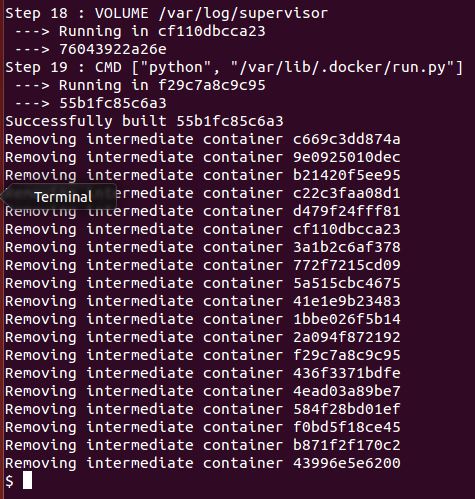
Two things that worth mentioning, first, you can pass a tar ball to the build command from stdin and docker will decompress and use it as the context. second, there are many staging or intermediate containers along the way to build the final container that you expected. Those will be deleted as default but you can keep them if you set the –rm=false. docker_build_remove_intermediate_containers When I build the hub container, I realized the repository name is missing and the same thing happens again when I redo it. I ended up using the 12 digits image id to start the container, and at least it works.

docker_run_hub

Now the challenging part is how to start the node, momer mentioned that you gonna use a tool called MaestroNG to make it work.

TO BE CONTINUED