SolrCloud – Quick Start

“SolrCloud is designed to provide a highly available, fault tolerant environment for distributing your indexed content and query requests across multiple servers. It’s a system in which data is organized into multiple pieces, or shards, that can be hosted on multiple machines, with replicas providing redundancy for both scalability and fault tolerance, and a ZooKeeper server that helps manage the overall structure so that both indexing and search requests can be routed properly.” – Solr Wiki

I am following the tutorial “Getting Started with Solr Cloud” and felt it will be beneficial to add a few images with some comments to help the ones like me who feels like “driving”.

When you first started the two nodes Solr Cloud, you can see a topology graph of the Cloud by visiting the web admin. In the graph below, starting from the root – “gettingstarted”, one can easily see that collection got split into two shards, shard1 and shard2. And each shard, instead of split, got replicated twice and each replication is sitting on a different node. And out of the two replications/nodes/servers, one out of two has been marked as Leader while the other one is active. In this case, it happens to be the Leaders of both shards happen to be on the same machine 7574.
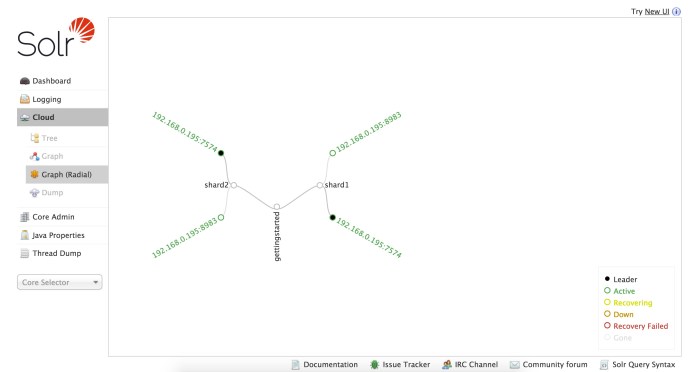
solrcloudradialgraph

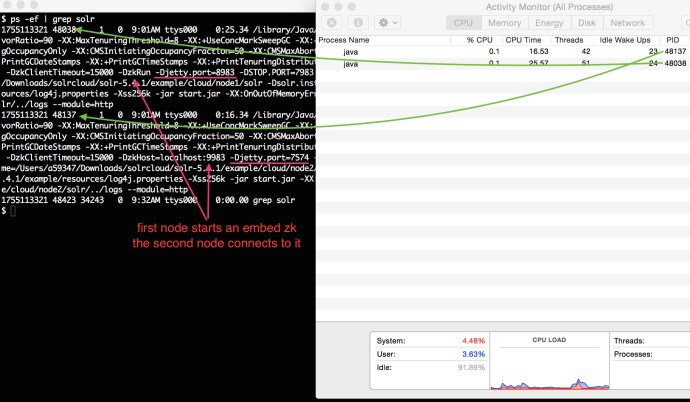
Since we are simulating a Solr Cloud using once machine, behind the scene it is actually running two separate JVMs.

You can even extract more information from the process like port number, jvm memory size, time out time and even zoo keeper information. solrtwojvms
The following screenshot is the output of the command “bin/solr healthcheck” where gives you a quick summary of what is going on about the cluster at a high level.
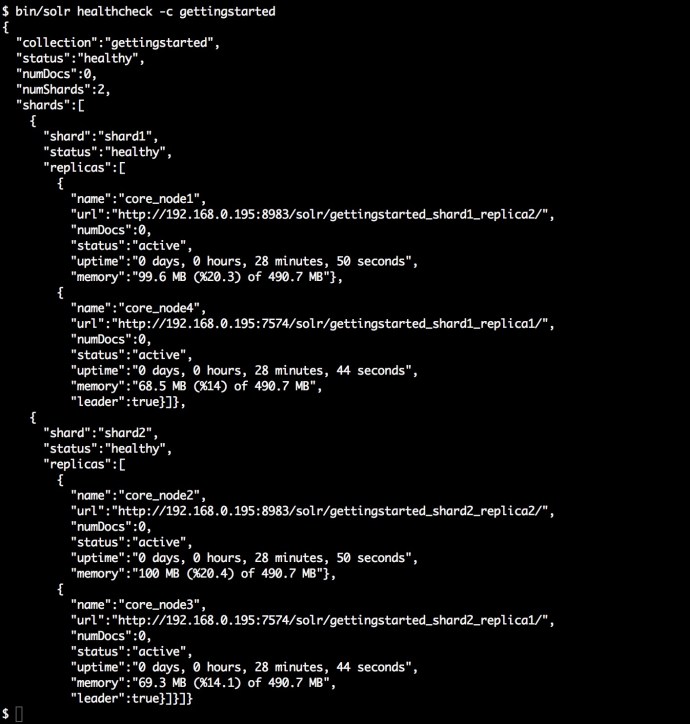
solrhealthcheck

The next step is to index a few documents and see how it looks like in the SolrCloud.

$ bin/post -c gettingstarted docs/
/Library/Java/JavaVirtualMachines/jdk1.8.0_66.jdk/Contents/Home//bin/java 
-classpath <solrpath>/dist/solr-core-5.4.1.jar 
-Dauto=yes 
-Dc=gettingstarted 
-Ddata=files 
-Drecursive=yes 
org.apache.solr.util.SimplePostTool docs/
SimplePostTool version 5.0.0
Posting files to [base] url http://localhost:8983/solr/gettingstarted/update...
Entering auto mode. File endings considered are xml,json,csv,pdf,doc,docx,ppt,pptx,xls,xlsx,odt,odp,ods,ott,otp,ots,rtf,htm,html,txt,log
Entering recursive mode, max depth=999, delay=0s
Indexing directory docs (3 files, depth=0)
POSTing file index.html (text/html) to [base]/extract
...
POSTing file VelocityResponseWriter.html (text/html) to [base]/extract
Indexing directory docs/solr-velocity/resources (0 files, depth=2)
3853 files indexed.
COMMITting Solr index changes to http://localhost:8983/solr/gettingstarted/update...
Time spent: 0:00:44.416

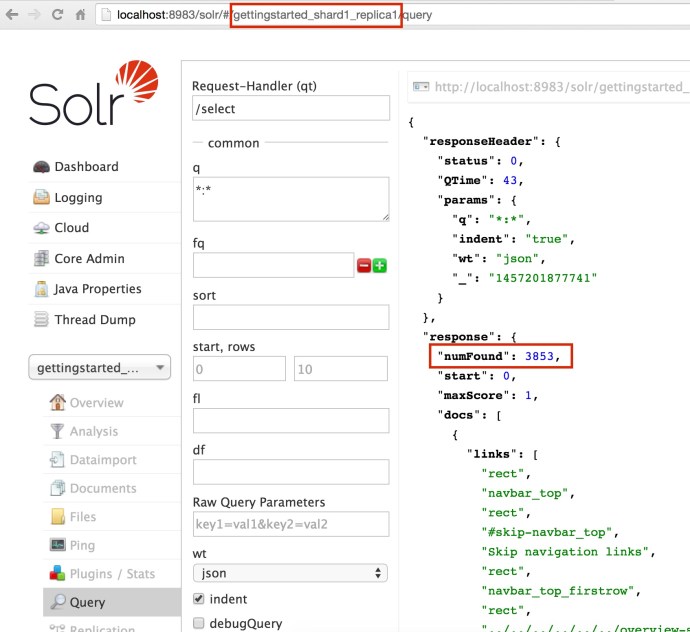
Using the bin/post SimplePostTool, I easily indexed 3853 documents. And now lets see how it looks like SolrCloud.

solrcloudquery

http://localhost:8983/solr/gettingstarted_shard2_replica1/select?q=*%3A*&wt=json&indent=true

This is really interesting, what is really going on here after I ran the post command:

  1. When the SimplePostTool was issued, we really did not specify how to split the documents and which shard it need to go. And the only thing you need to specify is the collection name. Cloudera really hide the complexities from the end users.
  2. After all the 3853 documents got properly indexed, I went to the Leader of each shard and from the overview window, you can see how the documents got split into each shard, Shard1: 1918, Shard2: 1935 and they add up to (1918+1935) = 3853.
  3. When I issued a query from the webapp inside one of the cores, it actually make an API call to that specific core – localhost:8983/solr/gettingstarted_shard2_replica1, however, the returned result are 3853! that is everything in this collection. Clearly, even if your query are issued against one shard, the query are actually across the whole SolrCloud.
  4. I also tried to change the core name to be the collection name because end user really don’t know how many replications or how many shards we have behind the scene. And actually most people probably don’t care at all. After I change it from core name to the collection name, it still returned the complete result correctly.

    http://localhost:8983/solr/gettingstarted/select?q=*%3A*&wt=json&indent=true
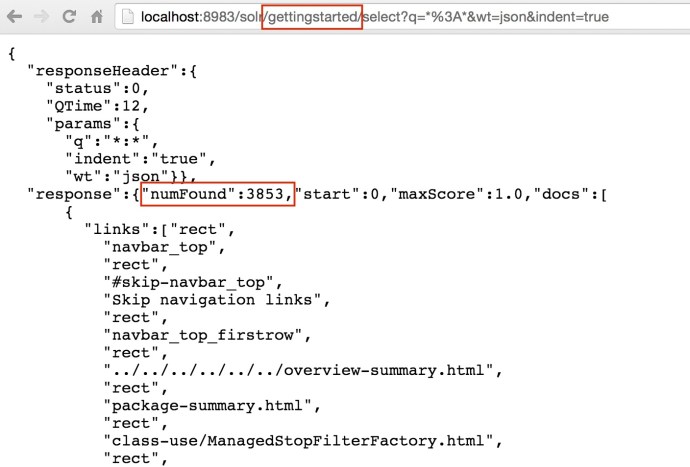
solrcloudcollectionquery
Now we have started a two node Solr Cloud, indexed some documents and saw how it got split into shards and how to query against individual core or even the whole collection.

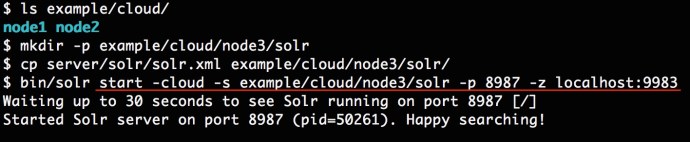
Now lets try to add one extra node to the solrcloud and see what happens.
solrcloudaddnode
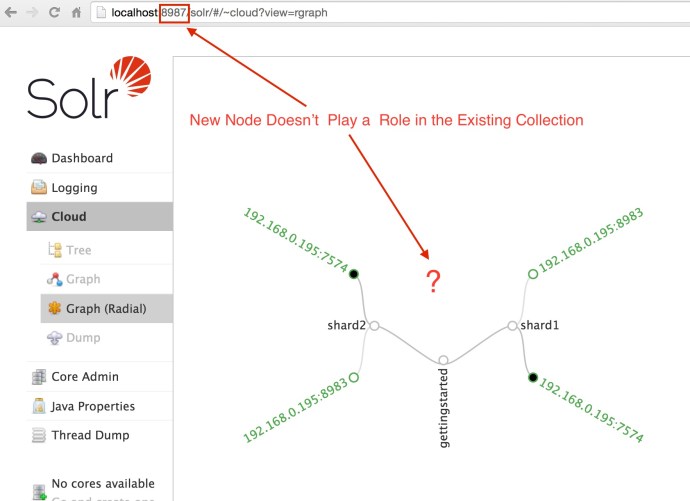
Now we have a new node up and running and we now can see 3 Solr java processes from the top command. However, if you have worked with Hadoop before, when you add a new node to the cluster, there is some logic going in the background will slowly rebalance the whole cluster, and propagate the data from the existing node to newly added nodes. However, if you think add new node in SolrCloud will do that type of rebalance out of box, you might be wrong.

As you can see, when you log into the new node, there is not a single core there, and when you look at the collection graph, the new node was not added as default and it is still the same graph we have seen before.
solrcloudnode3cloud

To some people, they don’t really care about shard, core, node…etc. And the only thing they want if when the service is slow, I will add more servers to it and that should solve the problem.

Again, thanks to the community who came up with such a fantastic tutorial. It was really informative and fun. Hopefully this post is helpful to someone. In the coming posts, we will look more into:

  1. how the sharding and routing part really works in SolrCloud
  2. if there is a hands-free solution like the Hadoop auto-balancing
  3. how map reduce fit into the picture to bulk load large amount of indexes.

🙂

Grammar – Backus Naur Form

I was reading through this Java doc about regular expression and got totally confused by the format and symbol the author uses across that page including pipe (|) and :==. At the beginning, I thought it was just a format thing that people use all the characters to help make things look more organized.

However, after posting a question on Stackoverflow, I realized that is something totally professional called “BNF” or Backus Naur Form.

This form was named after John Backus and Peter Naur from IBM around 1960s.

In a nutshell, it looks like the recursion in math or cs. Here are two examples:

word :== letter | word + letter
phrase :== word | phrase + '' + word

I won’t even show off my understand here but please take five minutes watching this youtube video and that dude did a much better job explaining this in an easy way.

Solr – Unit Test -ea

If you have ever considered to contribute to some open source projects and add your name to the committer list one day, this is a good documentation for the Solr community where you can get yourself kickstarted.

I downloaded Lucene and Solr source code locally by issuing the command:

git clone http://git-wip-us.apache.org/repos/asf/lucene-solr.git

Where http is the read-only version and you can change it to https if you are committer.

Now I have a folder called lucene-solr, and change the directory to that folder and run the command ‘ant test’ which is supposed to run all the test cases in both of the solr and lucene folder. The first downloaded folder is only 300MB-ish.

It took me literally 40 minutes to run all the test cases! And the folder exploded from 300MB to 700MB!

solr_test

Then you can run the command `ant eclipse` and it is just a matter of a few seconds, you have a directory that can be loaded into Eclipse.

TestRegexpQuery_junit
I located to the TestRegexpQuery.java and tried to run the junit test and somehow it failed..

Solr FAQ and this Stackoverflow question helped solve my problem by:

  1. checking the -ea in Eclipse preference
    TestRegexpQuery_junit_preference
  2. add -ea to the vm argument in project setting
    TestRegexpQuery_junit_runconfigIn the end, everything works out of box 🙂 TestRegexpQuery_junit_success

Solr – DIH Batchsize

I have written a post that the DIH’s import performance was horrible 27 minutes to index 1 million rows while CSV post took only 22 seconds.

We realized that there is an attribute for the datasource tag called “batchsize” which is supposed to change something.

Here is a page that contains a lot of DIH FAQ which covers a lot. However, here is a quote that worth mentioning:

DataImportHandler is designed to stream row one-by-one. It passes a fetch size value (default: 500) to Statement#setFetchSize which some drivers do not honor. For MySQL, add batchSize property to dataSource configuration with value -1. This will pass Integer.MIN_VALUE to the driver as the fetch size and keep it from going out of memory for large tables.”

If you think about batchsize, in the extreme scenario, when you set batchsize to be super small, like 1, it basically means SQL will fetch one record at a time and the back and forth, commit and network will be amplified linearly. In the other extreme scenario, if you turn batchsize to be a huge number, it will try to load everything from database into a big batch first, hold into memory and then send over the network to Solr. This could easily go wrong where either runs into memory issue or network issue. Is there supposed to be a sweet spot somewhere in the middle, ideally yes, however, it doesn’t looks that obvious considering this dummy experiment.

I have a MySQL table that has 1 millions rows where I change the batch size to be different values and run a full-import and I am trying to analyze indexing speed. Here are a few screenshots.

batchsize_10batchsize_10000batchsize_100000batchsize_n1

Clearly, change the batchsize to -1 completely did the magic and load 1 million records in half an minute, however, changing it to any other numbers really didn’t make a huge difference and regardless of the number that I put there, 10, 1E4, 10E5 all ended up loading the in the time of like half an hour.

If we really want to come up with some sort of conclusion, I will still say increase the batchsize will increase the number of index rates, by really not that much.

In the end, set the batchsize to be negative one (batchsize=”-1″) 🙂


Solrcloud – get started

Solrcloud is a cluster of solr servers which combines fault tolerance and high availability. It can be coordinated by zookeeper and store all the index files into HDFS which makes it almos feasible to index any data, big and even huge data.

You can run Solr in the cloud mode just by downloading the plain Apache Solr, and if you are already using some sort of big data platform, like Cloudera Hadoop (CDH), Solr Cloud is already preinstalled and it has even been packaged/integrated into Cloudera Search.

In CDH, they use a command line utility solrctl. Here is a dummy example where it shows the idea of how to use solrctl to get something into Solr.

solrctl instancedir --generate $HOME/<solr_config_dir>

solrctl instancedir will manipulate the instance directory where contains the configuration files for certain solr collection, something like the conf folder. This command will create a directory called “<solr_config_dir>” in your home directory.

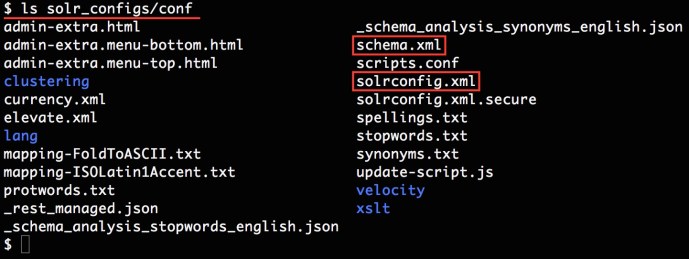
This is how the generated <solr_config_dir> looks like and then we need to upload the instance directory to zookeeper and create a collection based on that.

solr_configs

$ solrctl instancedir --create <collection_name> $HOME/<solr_config_dir> 
Uploading configs from /home/<user>/<solr_config_dir>/conf to node1.datafireball.com:2181,node2.datafireball.com:2181,node3.datafireball.com:2181,node4.datafireball.com:2181,node5.datafireball.com:2181/solr. This may take up to a minute.

In the end, you need to create a collection using the instance directory you uploaded. Here I am going to create a collection with number of shards to be two.

solrctl collection --create <collection_name> -s 2

In the end, you can run the list command to see the created collections…

$ solrctl collection --list
collection1 (2)
collection3 (2)

After you created the collection, you can upload a few documents by using the built in post command

cd /opt/cloudera/parcels/CDH/share/doc/solr-doc-4.10.3+cdh5.5.1+325/example/exampledocs
java -Durl=http://$SOLRHOST:8983/solr/collection1/update -jar post.jar *.xml

In the end, you should have something similar like this:

solrcloud_console.jpg


Solr – Data Import Request Handler

If the data that you are trying to search/index is already in some sort of database that support JDBC, then you are in good shape.

I was once thinking that I can export the into into CSV-ish file and then use CSV uploader or even simpleposttool to help me upload those data into Solr. Clearly, this is such a common use case they even have a function that connect Solr directly with database to avoid this uploading and uploading process, and this functionality is called “Data Import Request Handler”. 

This post is about quick and dirty tutorial where I was trying to load 1 million records into MySQL and then use the data import request handler to feed to Solr to index.

Believe it or not, I have not quite fully understood how to create a brand new core from scratch, in this tutorial, I completely forked the example project – techproducts where all the project structure has been well laid out. Then it is just a matter to change a few parameters here and there, add a few dependencies and that is it.

In the end, there are three places that I need to change:

First is schema.xml: since we are going to index our own data, I have to add in all the fields into schema.xml to make sure all the necessary sql table columns have a corresponding field in the schema.

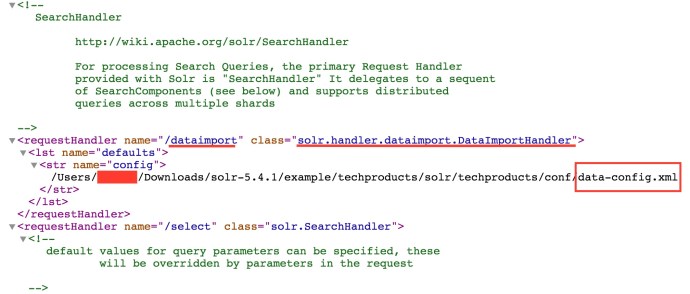
Then, it is the solrconfig.xml: there are two places in solrconfig.xml where we need to modify. The first one is to add data import request handler

solrconfig_requesthandler

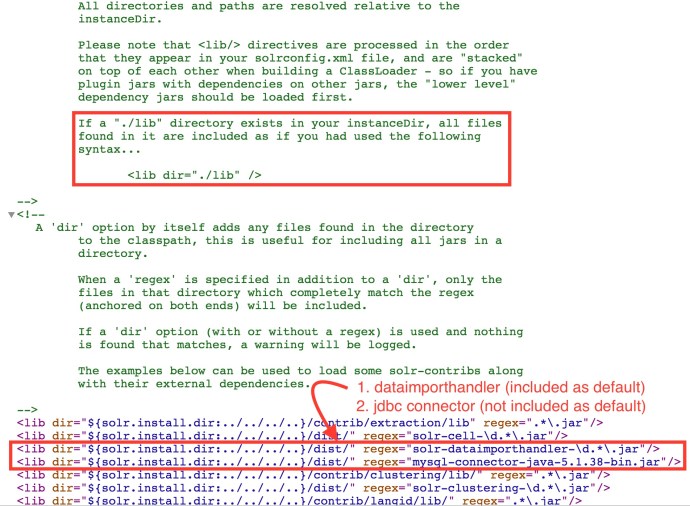
Then the second one is to include necessary dependencies to make sure they know where the jdbc driver is (MySQL in this case) and where the dataimporthandler is.

The dataimporthandler was included as default under the dist directory where I had to download the MYSQL jdbc driver myself to the dist directory and included in solrconfig.xml.

solrconfig_dataimporthandler.jpg

In the end, it is the file data-config.xml where all the mysql credentials and sql query and column name mapping are defined.

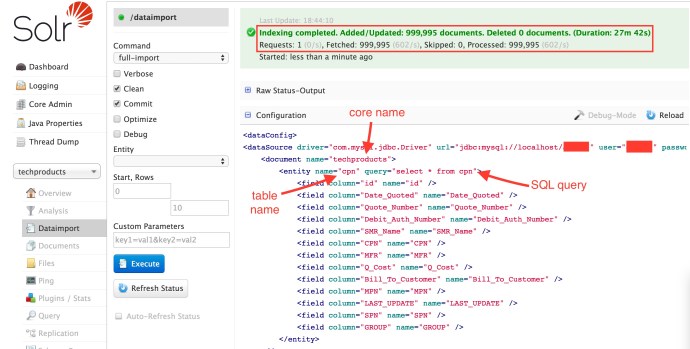
In the end, restart your project and you are good to go, you can either by calling the dataimport by issuing an http call or you can log in solr dashboard and click the execute “Button” there, here is how it looks like in the end including the data-config.xml content.

solrdataimport.jpg

In the end, I have to say that the process was pretty easy, however, the out of box performance was not as satisfactory as I expected. It took almost half an hour to index only 1 million rows, and the bin/post command can upload 1 million rows in 24 seconds!

More research need to be done but this quick experiment is very meaningful since this solution could potentially seamlessly tie different types of relation databases all together (MYSQL, SQL server, Teradata, and even Hive, Impala…) without too much hassle. 🙂


Lucene – Run Indexer and Searcher

You have to buy Lucene in Action! I personally think Lucene in Action and Solr in Action are the best two technology book that I have read. I am trying to follow the example Sample Application 1.4.

You can download and run the example code here. I don’t have that much experience working with Java, most of the projects that I have worked with use the build tool Maven, looks like the POM file will take care of all the dependencies and the build process. This time, the author of Lucene in Action decided to use Ant.

At the beginning, I thought it might be another headache, however, it turned out to be so easy to follow the tutorial, simply download the source code, navigate to the project root directory where build.xml is located. And run the command:

 ant Indexer

And you just type in a few input arguments through the command line and the program will locate the example and everything finishes smoothly.

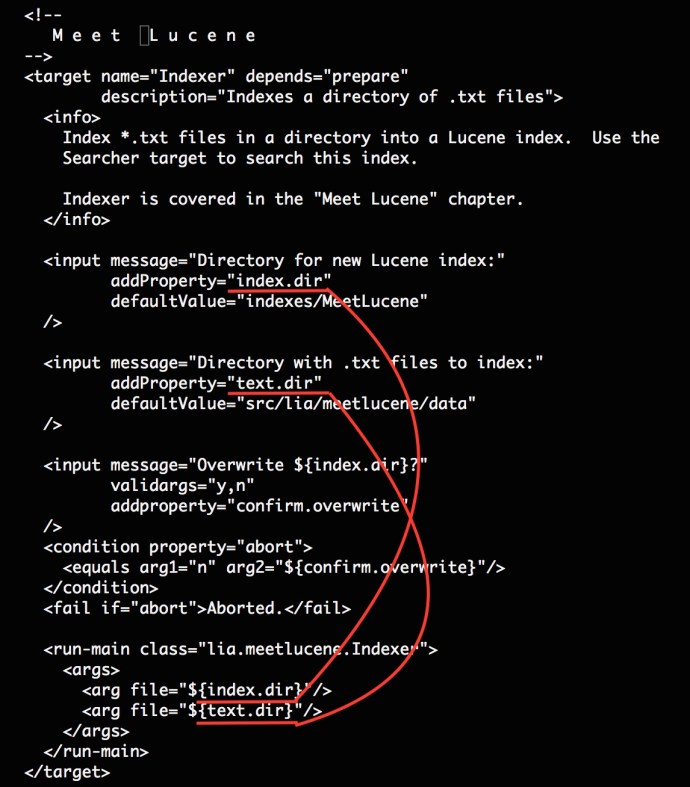
I was super surprised at how easy this is and looking at the build.xml, we see how this happens:

ant_target
the name attribute of target defines why ant Indexer will locate this build block. Then we have an info tag. Following the info, we have two input blocks where defined the prompt message, variable name. In the name, the run-main block is very interesting, where class defines where to look for the main class in the package and passes the two arguments to the program.

After running the Indexer and Searcher, you will see there is a folder that we specified,  indexes/MeetLucene that got generated. And there is the folder where all the indexes have been stored.

$ ls
_0.cfs       segments.gen segments_2

There are are three files under the index folder and they are all binary files which is not that straightforward to interpret. I even did not find a good place in the book explaining what those files are for.

After a quick Google search, you can find Lucene Index File formats here.

CFS: compound files

Segment_N: active segment file

Here is a screenshot of the first few lines of the cfs file. And clearly we can see it is a compound file of a few different smaller files.

cfs

  • _0.tii The index into the Term Infos file
  • _0.tis Part of the term dictionary, stores term info
  • _0.fdx Contains pointers to field data
  • _0.nrm Encodes length and boost factors for docs and fields
  • _0.fdt The stored fields for documents
  • _0.prx Stores position information about where a term occurs in the index
  • _0.frq Contains the list of docs which contain each term along with frequency
  • _0.fnm Stores information about the fields

Solr – Suggester – FileDictionaryFactory

Autocomplete is a feature that dramatically improves users searching experience. So what is autocomplete or suggester if you have never seen these terms before.

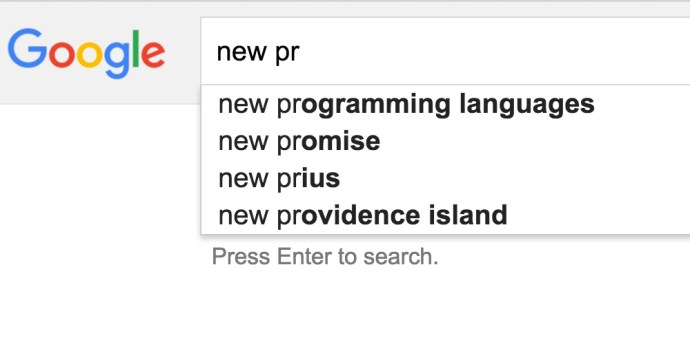
Here is a screenshot of how autocomplete and suggest looks like in Google.

suggest

If you want to learn more about how suggester works in Solr, here is a confluence article I found very helpful.

There are two definitions that I want to highlight, data dictionary and lookup implementation.

Lookup-Implementation: “The lookupImpl parameter defines the algorithms used to look up terms in the suggest index. There are several possible implementations to choose from, and some require additional parameters to be configured.”

Dictionary-Implementation: “The dictionary implementation to use. There are several possible implementations, described below in the section Dictionary Implementations. If not set, the default dictionary implementation is HighFrequencyDictionaryFactory unless a sourceLocation is used, in which case, the dictionary implementation will be FileDictionaryFactory”

Here I am going to share how to get the dictionary factory up and running and in this case, I will use the filedictionaryfactory which Solr will locate an external file where the suggestions are specified.

FileDictionaryFactory

“This dictionary implementation allows using an external file that contains suggest entries. Weights and payloads can also be used.

If using a dictionary file, it should be a plain text file in UTF-8 encoding. Blank lines and lines that start with a ‘#’ are ignored. You can use both single terms and phrases in the dictionary file. If adding weights or payloads, those should be separated from terms using the delimiter defined with the fieldDelimiter property (the default is ‘\t’, the tab representation).

This dictionary implementation takes one parameter in addition to parameters described for the Suggester generally and for the lookup implementation:”

I first created a suggestion file under the collection folder (techproducts). And here is how the file looks like:

$ cat ./example/techproducts/solr/techproducts/bwsuggester.txt
# This is a sample dictionary file.
acquire
accidentally\t2.0
accommodate\t3.0
alex\t4.0
test
test1\t1.0
test2\t2.0
test3\t3.0
ceshi
ceshi1\t1.0
ceshi2\t2.0
ceshi3\t3.0

And then you need to modify the solrconfig.xml to use the filedictionaryfactory:

solrconfig
In the end, you can restart solr by issuing the commands:

bin/solr stop -all
bin/solr start -e techproducts

They should restart solr and take the latest configuration file into consideration.

Then lets take a look at the how to query the suggester using Solr API.

http://localhost:8983
/solr/techproducts/suggest?
suggest=true&
suggest.build=true&
suggest.dictionary=mySuggester&
wt=xml&
suggest.q=ceshi2

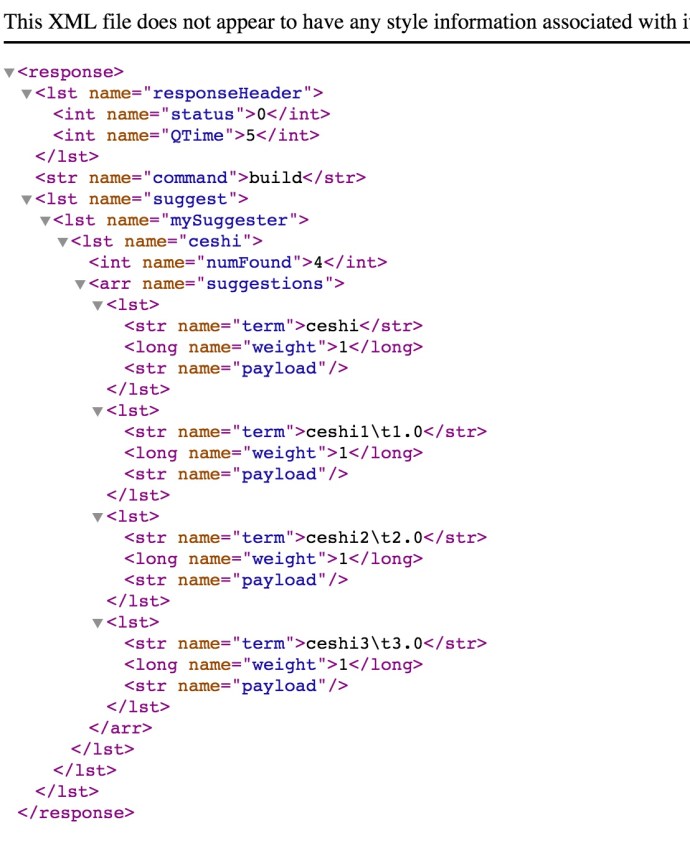
And here is how the result looks like:

ceshi.jpg

The good news is Solr is already using the external suggestion dictionary that we provided. But the bad news is that it did not parse out the weight correctly and more work need to be done.